Google Tag Manager - Advanced Tracking

It is time to look at some complex scenarios, where you can track critical elements for the business. We will look into how to create a custom event, which is not pre-defined or available by default.
In this chapter, we will look at −
  • Implementing Custom Events
  • Mouse Scroll Tracking

Implementing Custom Events

There will be instances where you might want to create an event, which is different than the available events in GTM. To achieve this, we will need to create a custom event, which utilizes the existing variables from the data layer.
Consider the scenario when we click the Internal Link created earlier. Let us create a custom event called urlClick, which will read the data layer variable gtm.elementurl.
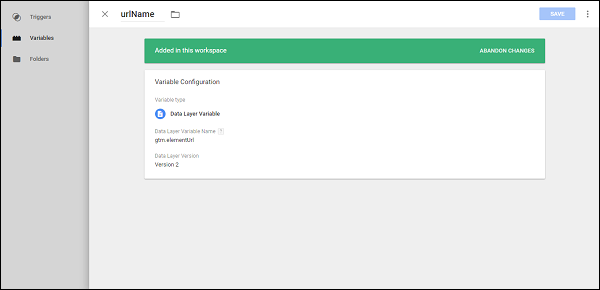
Step 1 − To do so, let us create a variable called urlName from the Variables section. Using the usual process, create the variable.
Create-a-variable
Shown above is an example of data layer variable – urlName.
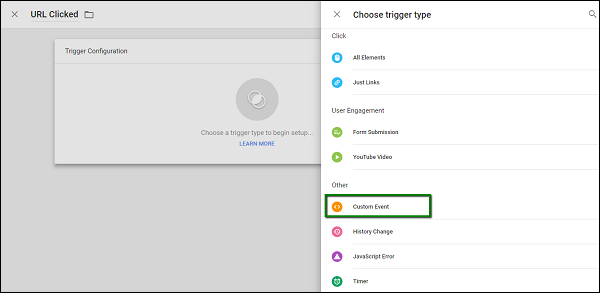
Now, we will use this variable to create our custom event. Custom event will be used when we create the trigger. See the following screenshot for reference.
Custom Event
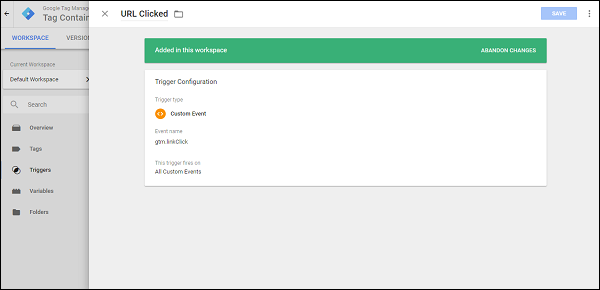
Step 2 − Create a trigger to fire on the event that is already present, by clicking the Internal Link. Under Event Name, specify gtm.linkClick.
URL Clicked
Now, let us create the tag.
Step 3 − Follow the same process for creating the tag. Here are the details −
  • Tag Type – Universal Analytics
  • Track Type – Event
  • Category – Link Click
  • Action – Click
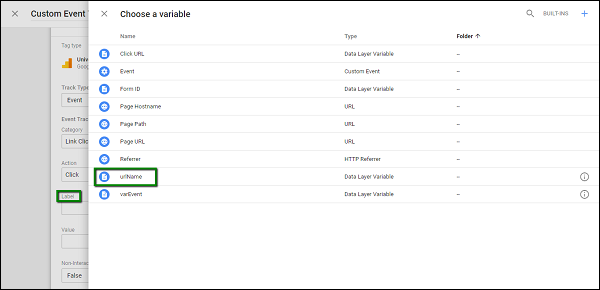
Step 4 − For label, use the recently created label, urlName.
Created Label
Step 5 − Once done, check Enable overriding settings in this tag. In the Tracking ID text box, enter your Google Analytics Tracking Code.
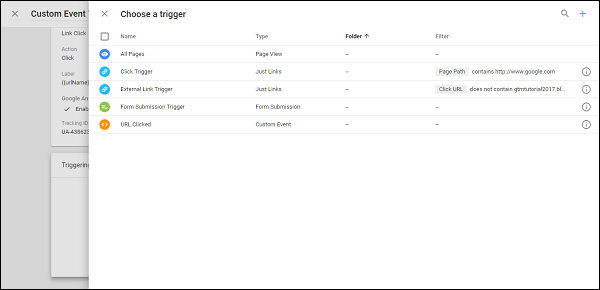
When selecting a trigger, make sure you select the recently created trigger – URL Clicked.
Selected Trigger
Step 6 − Save the tag. Click Preview to see the changes in your blog.
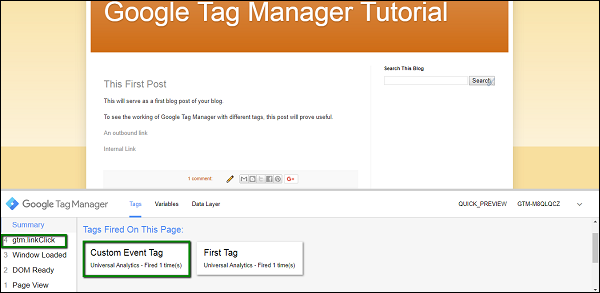
Step 7 − Ctrl + Click on the Internal Link. You should be able to see the gtm.linkClick event in the Summary box. Also, you should see the tag fired as shown in the following screenshot.
Click Preview
In this way, we can use the existing events to create custom events of our own and have successful tracking for the controls that we want.

Mouse Scroll Tracking

When it comes to engaging the users on the blog, a product marketer may want to detect a mouse scroll. The detection of mouse scroll is critical as it will call for further actions, such as show a newsletter link or trigger a popup that provides some sort of discount on the product.
Using Google Tag Manager, we can easily track the scroll event. For this purpose, we need to use a third-party code, which we will use while creating a tag.
The code is available at this location. We will use it when creating a tag.
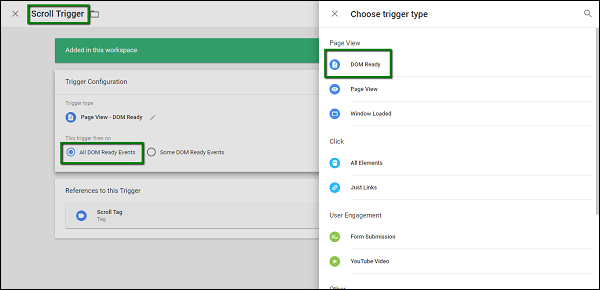
Step 1 − Create a trigger. We will call this trigger – a scroll trigger.
Refer to the following image for the trigger configuration.
Scroll Trigger
Step 2 − Configure Trigger Type – DOM Ready. Allow this trigger to be fired on – All DOM Ready Events.
Step 3 − Click SAVE once done with the above steps.
Now let us create the tag.
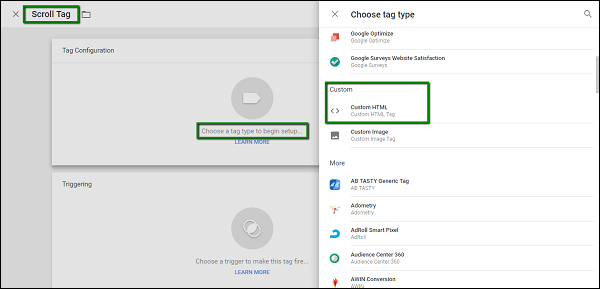
Step 4 − This time, when creating a tag, select a different type of Tracking as shown in the following screenshot.
Scroll Tag
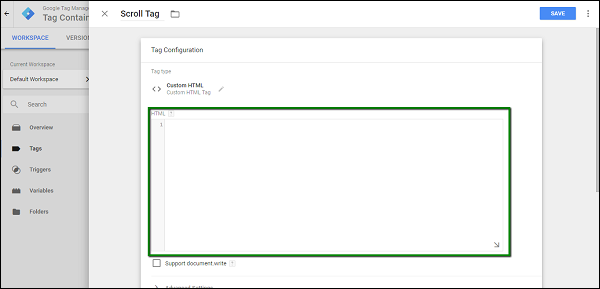
Step 5 − When custom HTML is selected, it will show up a space for entering the HTML code.
Custom HTML
Step 6 − Enter the code as copied from this link.
Step 7 − Scroll down to configure the trigger. The trigger that we recently created (Scroll Trigger above), needs to be selected.
Step 8 − Click SAVE.
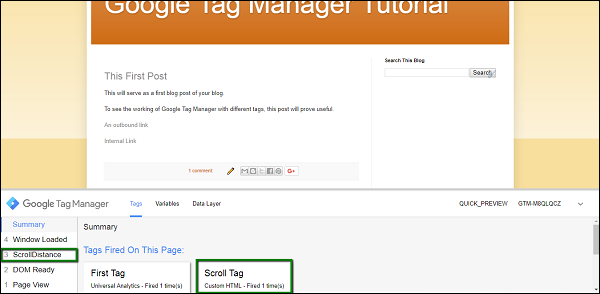
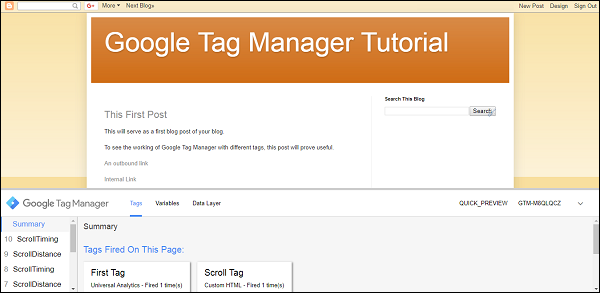
Step 9 − Now, start the GTM Debugger and refresh the blog page. You will see two major changes in the Summary and Tag section.
Scroll Distance
Step 10 − Now, scroll down to see the rest of the blog, a couple of more events will get triggered.
  • ScrollDistance
  • ScrollTiming
These events will eventually be used to detect the location of mouse scroll and take further action accordingly.
Mouse Scroll

Google Tag Manager - The Data Layer

A data layer can be seen as an object holding all the information to pass and process with Google Tag Manager. This is a bit technical concept. The term data layer is used to denote the data structure used by Google Tag Manager for storing, processing and passing data between your website/blog and the tag manager.
To elaborate it further, a Data Layer can feed the data into your analytics tool about your visitor. Taking another perspective for the definition, Data Layer is actually a list of business requirements and goals for each subset of the digital context.
Let us take an example of ecommerce website, business requirements might include −
  • Transactional information, having the details about what was purchased
  • Visitor data, regarding who purchased
  • Other details about the purchase, such as where was the purchase made and at what time
  • Lastly, the information about other factors, such as whether the visitor subscribed for the email updates or not
So, in a nutshell, the data layer carries information that can be used by different tools/users/stakeholders as required.
In Google Tag Manager, dataLayer is a JavaScript array. It consists of key-value pairs. Following is a quick example of dataLayer with different data types −
dataLayer = [{
   'products': [{
      'name': 'Western Cotton',
      'tuning': 'High-G',
      'price': 49.75
   },
   {
      'name': 'Fenda Speakers',
      'tuning': 'Drop-C',
      'price': 199
   }],
   'stores': ['Hyderabad', 'Bangloer],
   'date': Sat Sep 13 2017 17:05:32 GMT+0530 (IST),
   'employee': {'name': 'Raghav}
}];
Here, we have different values such as an array of objects (the products), numerical values (the price), an array of strings (stores), a date object and an object (name).
On another note, when you place Google Tag Manager Container Code in your website, the data layer is automatically created.
In itself, data layer is a pretty complex concept to understand in the first go. This chapter will provide more insights on how to interact with the data layer.

Data Layer Events

A quick example of data layer event can be, a newsletter signup form, which can’t be easily tracked with automatic GTM listeners. A website developer can support you to push a data layer event once a new subscriber has entered his/her email on your website. The code of this event should look like this −
push({‘event’: ‘new_subscriber’});
If you require, you can ask your developer for some more information, such as the form location. This is required if there are more than one form on your website. It can be achieved using the following code.
window.dataLayer = window.dataLayer || [];
window.dataLayer.push({
   'formLocation': footer’,
   'event': new_subscriber
});
Also, Google Tag Manager pushes a certain set of values to the data layer of web applications by default. These values are −
  • gtm.js − Pushed to the data layer as soon as Google Tag Manager is ready to run
  • gtm.dom − Pushed to the data layer when the DOM is ready
  • gtm.load − Pushed to the data layer when the window is fully loaded

Inspecting the Data Layer

As we already know by now, there are certain events that are created as a result of any interaction on the screen.
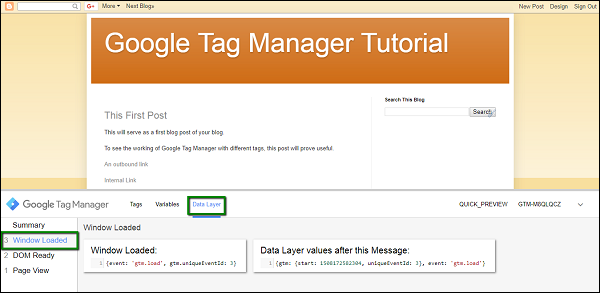
For instance, let us consider this simple page load event. To look at the events, you need to have the debugger running. Once you have the debugger running (in preview mode), visit the blog. If you look at the summary window at the bottom left corner, this is what you will see −
Data Layer
Step 1 − Click Window Loaded and then Data Layer.
The information shown in the Data Layer tab is about the Window Loaded event.
It is shown as – {event: ‘gtm.load’, gtm.uniqueEventId: 3}
Further, if you want to take a closer look, you need to take support from Chrome’s console tab. Inspecting a data layer becomes easy when you know how to use Chrome debugger in the correct way.
Step 2 − When you are on your blog, right-click at any part in the page. In the context menu displayed, click Inspect. The panel will be displayed at the right side of the screen, with Elements tab activated.
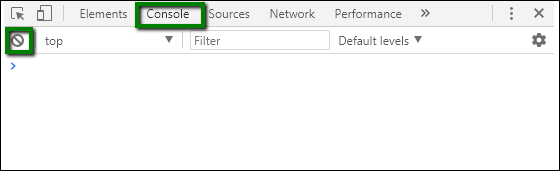
Step 3 − Click Console. When in the console mode, click the top left corner icon to clear all the messages shown. See the following screenshot for reference.
Console
Step 4 − Once the window is cleared for any previous messages, type in dataLayer, make sure the capitalization for L is done. This name is provided by Google Tag Manager to its data layer. However, your developers may assign it a different name as and when required.
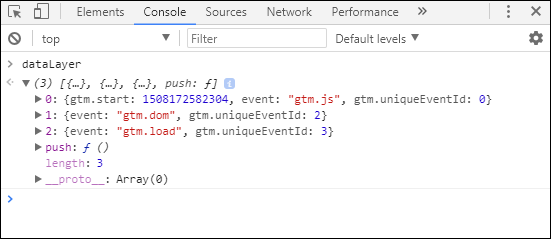
Step 5 − Press enter after dataLayer. It will show the following details.
GTM Data Layer
There are three objects, and each object contains some information. Now, these objects might not be the same for you, as they are shown in the above screenshot. The dataLayer is configurable and it is very much in the developer’s control to configure it as per the requirement.
The values that are present, are due to the Blogger gadget that is in use at that particular position/space. This is the reason why there is certain information there.
If you look at object 1, you will notice that the event that is fired, is – gtm.dom. It is fired by GTM while loading the page.
In this way, you can inspect the data layer and add information in it as and when needed.

Variables in the Data Layer

Now that we are acquainted with the data layer, let us try and read one of the variables using Google Tag Manager Interface.
Here, we are going to try and read the event using a data layer variable.
If we see the above figure, the variable event holds the gtm.dom. We are going to create a variable from GTM interface and see how it reflects in the Variables tab under Google Tag Manager.
Step 1 − In Google Tag Manager Interface, go to Variables. Scroll down to the user-defined variables. Click NEW.
Step 2 − Provide a name to this new variable, let us call it as varEvent.
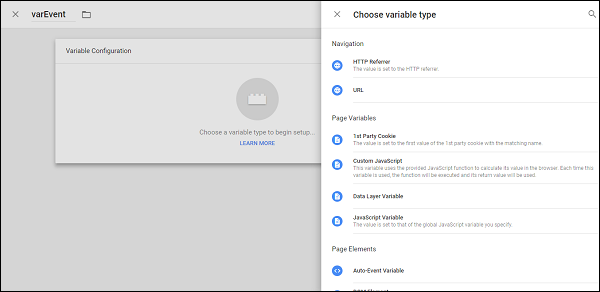
Step 3 − Click Choose a variable type to begin setup…
Click New
Step 4 − Select Data Layer Variable from the list.
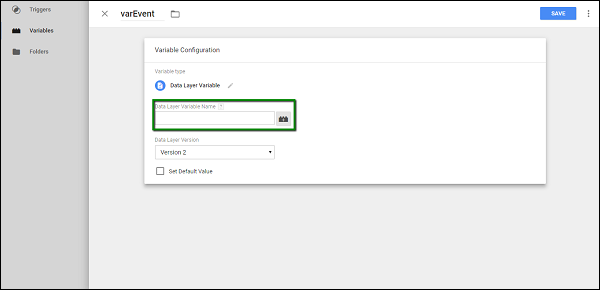
Step 5 − When you select Data Layer Variable, you will be required to provide the name and version.
Data Layer Variable
This name will be from the actual Data Layer of Google Tag Manager. As mentioned previously, the variable that we will track is – event.
Step 6 − Enter event in Data Layer Variable Name.
Step 7 − Click SAVE.
Step 8 − Click Preview to see the changes reflected in the debugger.
Data Layer Variable Name
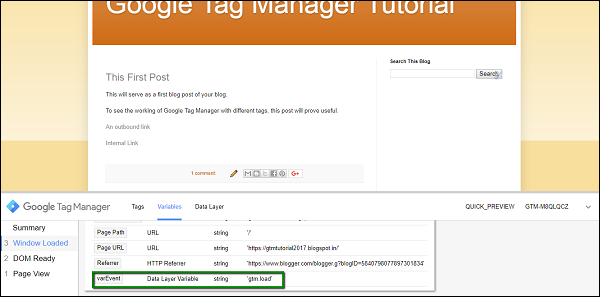
Step 9 − Once the page is loaded, click Window Loaded and then Variables. Scroll to the very bottom of Variables section, you will see varEvent, as highlighted in the above screenshot.
As seen in the above screenshot, the value will be gtm.load.
In this way, one can inspect the data layer and capture the values in the data layer as required.

Google Tag Manager - Publish a Tag

We have been creating, modifying, and debugging the tags in our debugger environment. Till now, we haven’t seen the tags live on our blog.
To have the tags live on the blog, we need to Publish the tags. We will want to have the tags Published than to have Preview mode always.
Publishing the tags is fairly simple.
Step 1 − Click the SUBMIT button at the top right corner of the screen.
It will show the following screen.
SUBMIT button
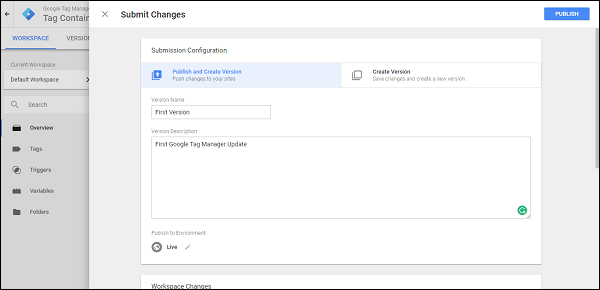
Step 2 − Enter an identifiable Version name so that it can be easily understood for the changes made.
With the version description, you can be as elaborate as possible on the changes/additions of the tag in that particular version.
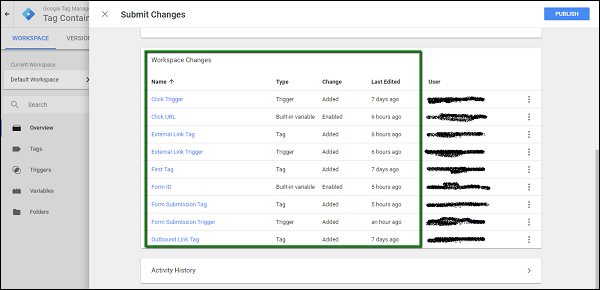
Step 3 − Scroll down to the Workspace Changes, you will see all the changes made in the tags, which are unpublished or in the PREVIEW mode.
PREVIEW mode
Similarly, under Activity History, you can get an exact understanding of the changes/updates that were done in the account since the beginning of time.
Step 4 − Provide a version name, description. You might want to provide the version name as First Version and you can provide the description as First Google Tag Manager Update.
For the moment, we will leave Publish to Environment as Live. This is because we don’t have any other environment apart from Live yet.
First Version
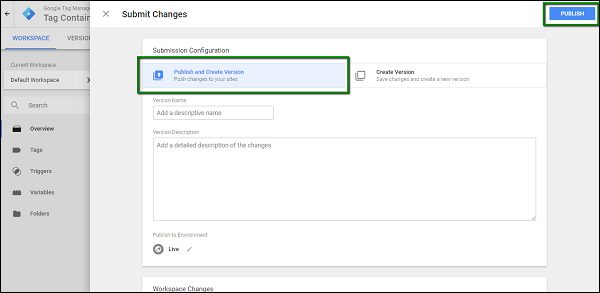
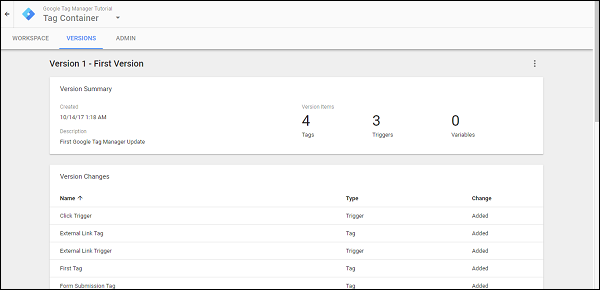
Step 5 − Click PUBLISH and you will be presented with a summary for this particular version.
Click PUBLISH
This is how you can publish the changes done in the workspace for Google Tag Manager.
You can use a Google Chrome plugin – Google Tag Assistant to see the tags getting fired without the preview mode on.

Creating Environments in Google Tag Manager

There are different ways in which we can configure an environment to be used with Google Tag Manager.
Usually, in the software world, the word Environment is used in the context of where the particular feature is being tested/reviewed.
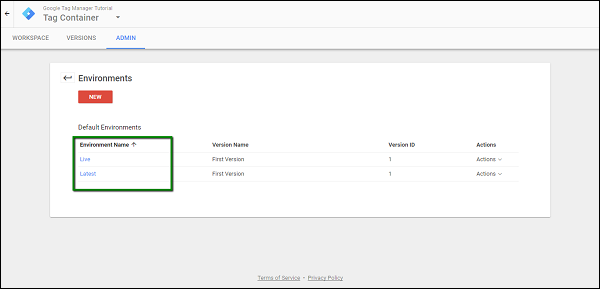
Step 1 − To view the available environments in Google Tag Manager, click ADMIN.
Step 2 − Under Container section, click Environments.
Creating Environment
You will be able to see the screen as shown above.
Typically, large software companies have their website divided in different environments to ease the process of releasing a feature. Developers work on their development website, then the feature changes are pushed to the staging site. Finally, when the changes are verified in the staging site, the changes are pushed to Live environment.
In the context of Google Tag Manager, there is a flexibility to add different environments, which will allow you to validate your tag completely before they are on the Live website. For this tutorial, we will create an environment, called Dev environment. Following are the steps.
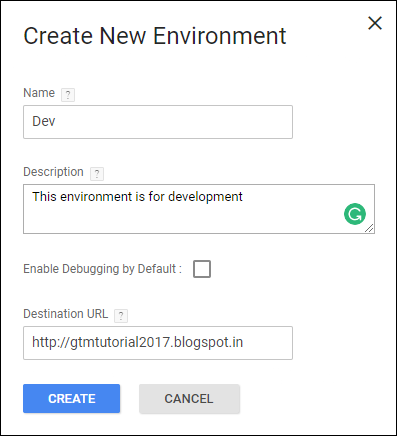
Step 3 − Click the NEW button in red. You will be able to see the following dialog box.
Create New Environment
Step 4 − Fill up the details as shown in the above figure. We will pretend that our dev site is the same site where we are working right now, in order to push the changes accordingly.
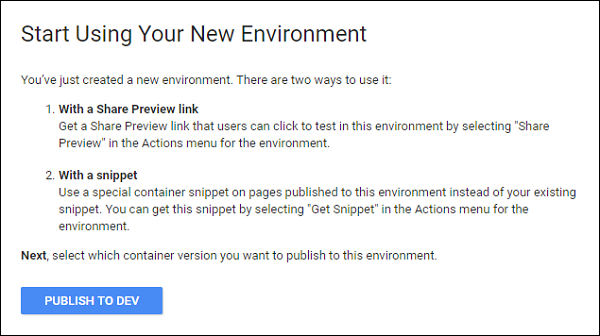
Step 5 − Click CREATE and you will see a prompt as the following.
New Environment
As shown in the above figure, the prompt shows two ways to use the environment.
  • Using a Share Preview Link − This link comes handy when you want to circulate the changes in your tags to your team members, when there are larger teams.
  • With a snippet − If you are clear that a particular site is going to work as your development/staging environment, then you can use this snippet option. A snippet for this environment is available, so that you can reach the website to see any changes that have been done lately.
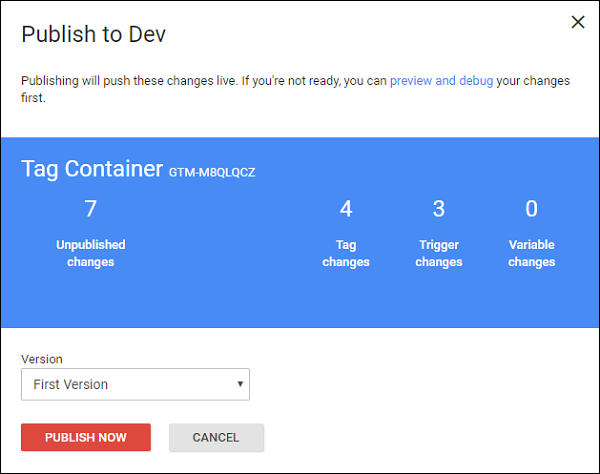
Step 6 − Click PUBLISH TO DEV to see these in action. The next screen will ask for the available changes to push in the newly created environment.
Publish to Dev
The changes that are not yet sent to the respective environment will be shown. Also, the version name is shown, so that the user is clear which version is being published to the respective environment.
Step 7 − Click PUBLISH NOW to see the changes available on your newly created environment. It will show the success message with a date and time stamp.
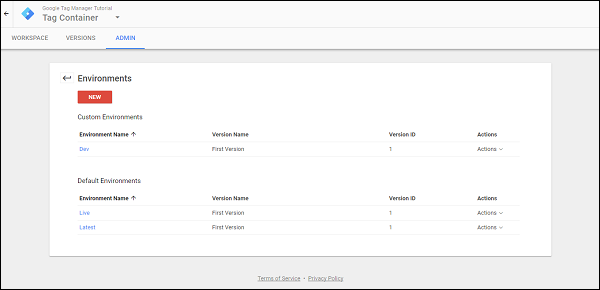
From the available list of environments, click the name of the new environment, in our case – Dev.
Dev
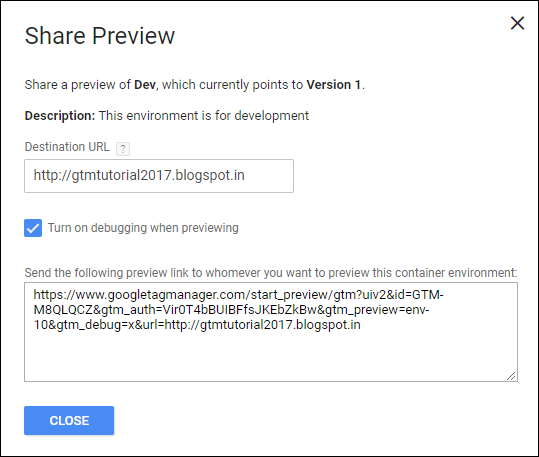
The available options to share the environment link will be displayed, as shown below.
Available Link
Using any of the above approaches, you will be able to see the changes in your tag on your development (Dev) environment.

Google Tag Manager - Organize the Interface

Along with creating the tags and managing the associated triggers and variables, Google Tag Manager has some more features to offer. This includes the housekeeping stuff such as organizing users, folders which are used for organizing the tags as per the desired order, etc.
In this section, we will get an overview on how to manage the users and different folders related to the tags.

User Management

It is not an uncommon scenario for a product marketing team to use a single Google Tag Manager account to manage different marketing campaigns. There will be different roles, which will have certain permissions such as creating a tag, deleting/modifying a tag, creating another user, etc.
User Management provides a full-fledged portal for managing the users utilizing GTM features. User management works at two levels −
  • Account Level
  • Container Level
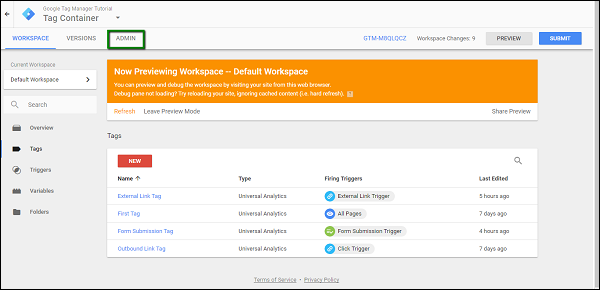
To access User Management, click ADMIN from the top left menu bar.
click ADMIN
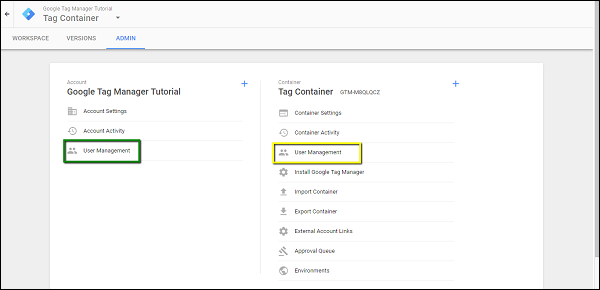
As shown in the following figure, you will be able to see User Management associated with Account and Container.
User Management
The important difference between the two is – if you provide access to a user at an account level, the user has an access to all the containers under that account. Whereas, if the access is provided to the user at a container level, the user can modify/add/delete the tags under only that container.
To see the details of what all access levels are available, click User Management under the Container level (highlighted in yellow above).
This will show the available accounts with the permissions they are provided with. Mostly, it will be the Google Account that you are using to log in to GTM.
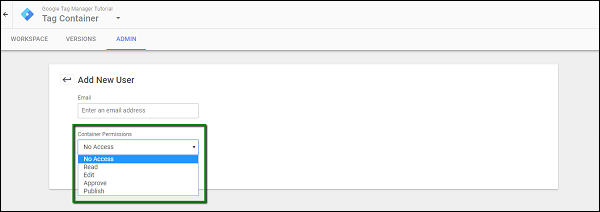
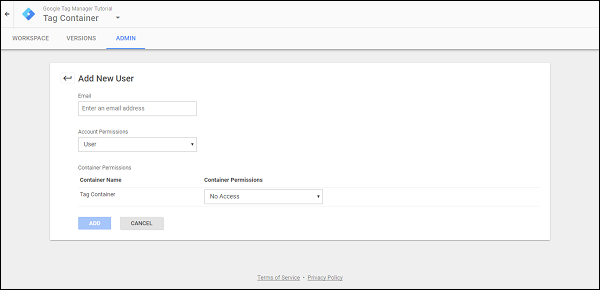
Click the NEW button in red. It will show the following screen.
Add New User
As shown in the figure, you can add an email address of your choice, to whom you want to assign permissions to access and then provide the desired permissions at the container level.
Following are the available permissions −
  • No Access − Block the user from accessing the container tags.
  • Read − The user will be able to only read the tags. No modifications or delete operation can be performed.
  • Edit − The user can add/modify/delete the available tags.
  • Approve − The user has an elevated permission to approve the tags to the live environment. More on environments later in the tutorial.
  • Publish − All permissions, similar to an admin user.
This concludes the overview of user management at the Container level.
At the account level, one can configure a user as a general user or admin user.
Account Level
Similar permissions can be allotted to the user being added; only difference is – the user will have an access to all the containers under this account.
This concludes an overview of user management at the account level.

Folders

Folders are required especially when you have numerous tags and triggers in your account. Folders can prove useful when you have such a large number or tags/triggers to handle.
For organizing the tags and triggers in these folders, one can use his/her own creativity. The folders can be created on the basis of different application areas or the users or maybe the purpose why they are being created. The produce marketing team can take their own decision of having a specific folder structure in place.
Another way of looking at folders can be from an aspect of analytical tools in use. On the basis of the analytical tool, one can create a tag, which will be helpful in the long run.
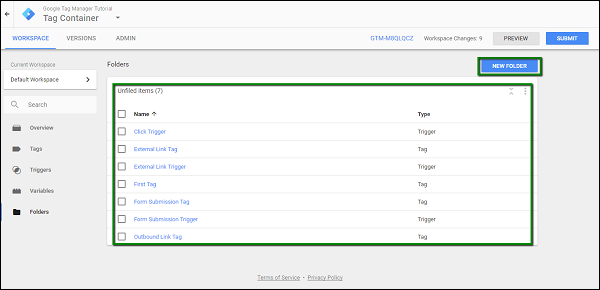
For creating different folders, click Folders from the left panel. You will see the following screen.
Folder
The tags created till now will be displayed on the screen. You may have the tags organized by creating different folders using the option – NEW FOLDER displayed on the top right corner of the screen.
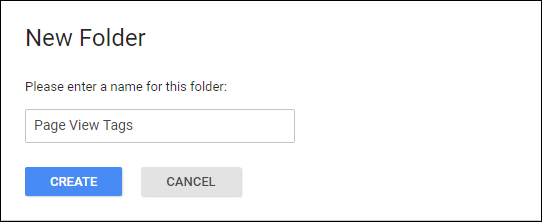
Once you click NEW FOLDER, a quick popup will open as follows.
New Folder
From the previous screen, you can always move the tags as per your requirement into the desired folder.
This concludes the introduction to creating folders in Google Tag Manager.

Google Tag Manager - Track Tags

Once you have understood the process of creating a tag, it makes sense to dive in deep and see how tracking is achieved using different approaches.

Page View Tag

A product marketer needs to understand the count of visitors for the product website/blog. This is really critical as it helps understand the visitor trend. It can be to know whether a particular enhancement/feature added in the website/blog is appreciated by the visitor, are the visitors accessing the website on a daily/weekly basis, etc.
Considering ‘Page View’ carried an enormous importance in understanding the likeability of the website/blog, let us see how a Page View can be tracked using a tag.
Step 1 − As we have followed the steps in the previous chapter, let us access the tag section in Google Tag Manager.
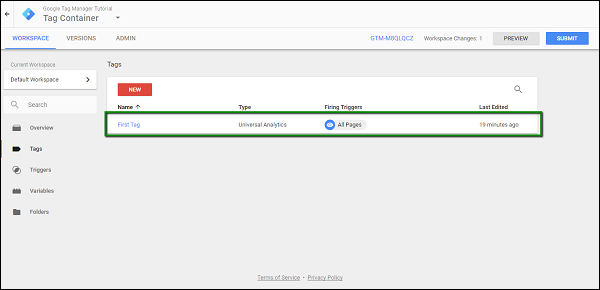
Access Tag
It will show the recently created tag – First Tag.
Step 2 − Click First Tag, it will show the dialog box with the configured triggers, etc.
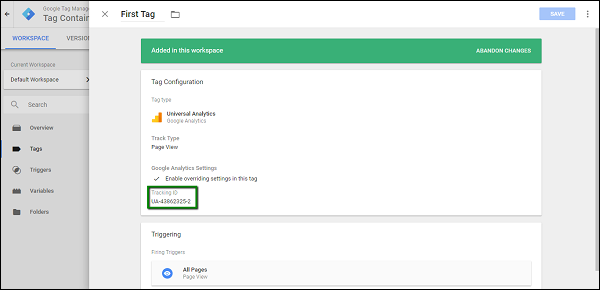
Click First Tag
As highlighted in the above screenshot, let us focus our attention towards Tracking ID.
This tracking ID is associated with Google Analytics. When we start the debugging mode, and visit the blog, it will be counted as a single page view.
At this particular moment, Google Analytics will record the page view in its interface.
Step 3 − Debug using Google Tag Manager, and open the Google Analytics dashboard, under Traffic Sources → Overview, you will see the following statistics.
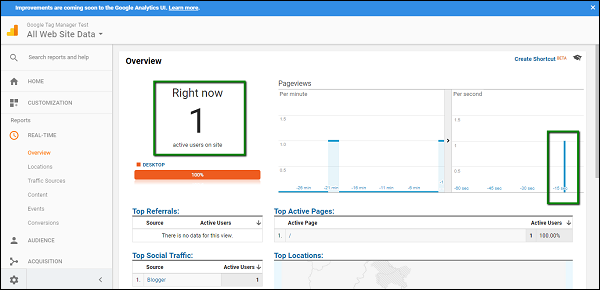
Google Analytics dashboard
This shows that a page view is recorded and the corresponding page views will be tracked further in Google Analytics.

Link Tags

Many a times there will be certain promotional offers for which a user may be required to leave the blog or website. Along with promotions, these can be some third party surveys that a user may be required to take. These surveys will yield certain statistics, which will be different from the data that is coming in via different tags.
For this purpose, it is useful to have tracking enabled on how many times the link is getting clicked and the user is directed away from the website. Such links are termed as outbound links and these links can be tracked easily using Google Tag Manager.
To demonstrate this, we will be creating a link in our blog.
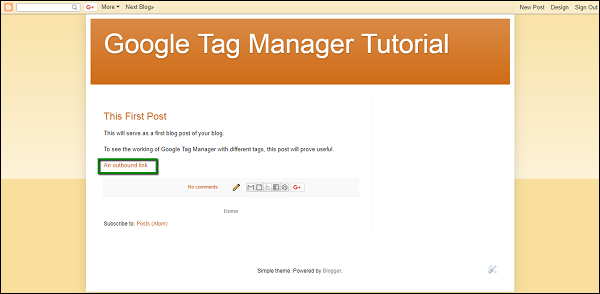
Outbound Links
The above screenshot shows a link called – An outbound link. This link will be used for tracking in Google Tag Manager. It redirects to https://www.google.com
Step 1 − Head to the Google Tag Manager workspace. Click Tags from the left panel. Click NEW button on the page to start creating the outbound link tag.
Let us name the tag as – Outbound Link Tag.
Step 2 − Follow the same process as the initial tag setup for having the Google Analytics code entered in the correct field – Tracking Id.
Step 3 − Select Track Type field as Event. You will be able to see the following options further.
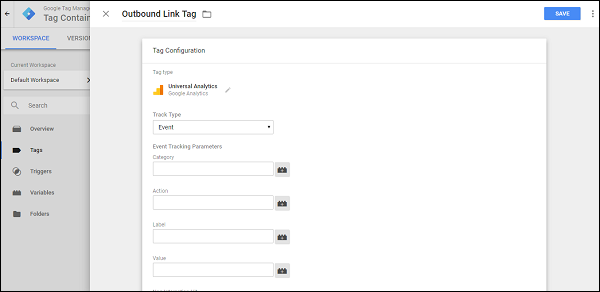
Track Type field
These options are in accordance with Track Type – Event. Notice that these options won’t be available at all under Track Type – Page View. This is because, as we are attaching the Google Analytics code with the Google Tag Manager, to see the details of the event in real time, we need certain parameters.
Step 4 − Fill in the form details as below. Text in bold are the values to be entered in the textboxes.
  • Category – Outbound
  • Action - Click
  • Leave Label and Value fields blank
  • Keep Non-Interaction Hit as False
Step 5 − Next, under the Triggering section, click Choose a trigger to make this tag fire…
Step 6 − Click the blue + icon at the top right corner. It will open the custom trigger section. Provide a name to this trigger as – Click Trigger.
Step 7 − Click Choose a trigger type to begin setup…
It will show the following trigger types as shown in the following screenshot.
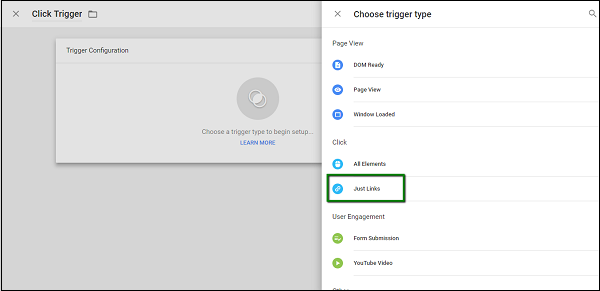
Just Link
Step 8 − As highlighted in the figure above, click Just Links under Click trigger type. This will show the different options to configure the newly created trigger type.
Now, we need to configure the trigger to fire if the clicked URL has a Page Path as https://www.google.com. Note that we have configured the link on our blog to redirect to the same URL.
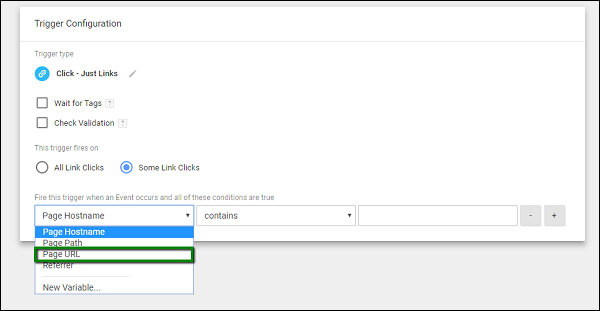
Page URL
Step 9 − Configure the trigger as provided exactly in the above figure.
We want to configure this trigger to fire on Some Link Clicks when the Page URL equals https://www.google.com. Once done, the screen should look like the following.
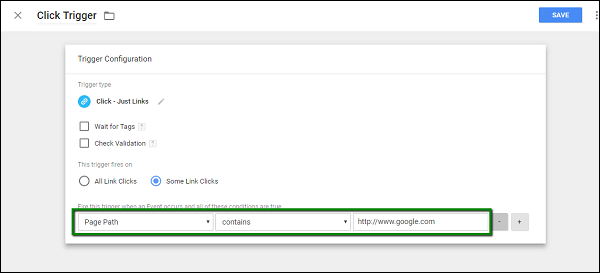
Page Path
Step 10 − Click the SAVE button to save this newly created trigger. The screen will return back to tag configuration for Outbound Link Tag.
Step 11 − Click SAVE to complete the configuration.
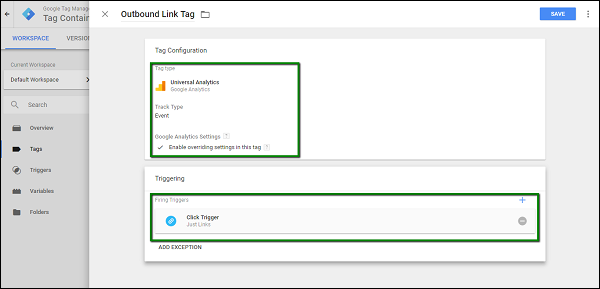
Outbound Link Tag
As highlighted in the above figure, a complete tag for outbound link should look like the above.
Now, let us have the tag in action.
Step 12 − From the workspace, click the PREVIEW button. The debug mode will start.
Step 13 − In your browser, in another tab, open your blog. The debug window will be shown at the bottom of the screen.
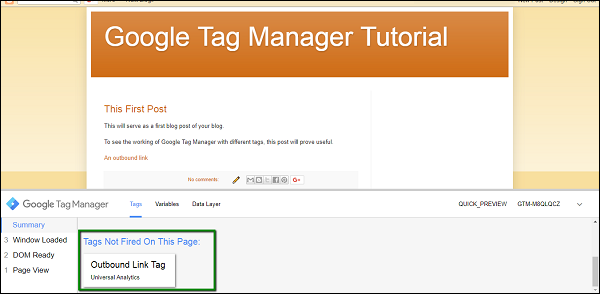
Debug Window
As shown above, since we have not yet clicked the link, the tag still appears under Tags Not Fired On This Page.
Step 14 − Click the outbound link as created in the previous step, the tag will get fired. You can see it appearing under Tags Fired on This Page.
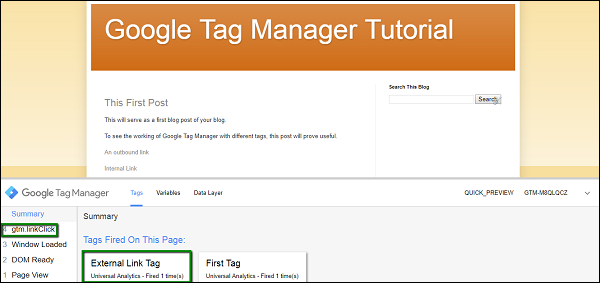
External Link Tag
This concludes the approach for creating a tag for an outbound link to track the links on the blog/website.

Event Tracking

Event tracking stands for any action that is different than a page load. The browser has a specific response to any action that you take on the page. For instance, the action can be as simple as clicking a link or submitting a form to a complex one such as tracking file views and downloads.
With the Google Tag Manager, you can easily track the events generated in the browser. It records the responses from the browser for potential action, thereby getting the particular event track easily.
We will use the above example to see event tracking in action. In the previous example we have created a link, which redirects away from our blog. In this example, we will create another link, which will be pointing towards our blog. We are using this example, in order to demonstrate how the links going away from the blog can be tracked seamlessly.
I have created a link called Internal Link in the blog. This link will redirect to the same blog page.
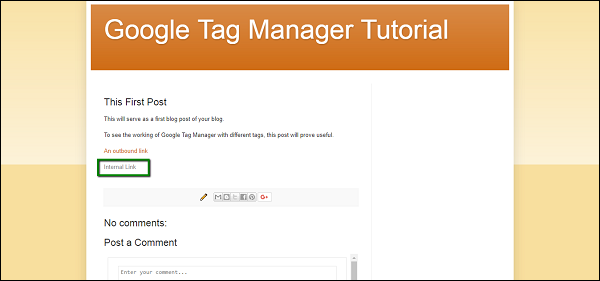
Internal Link
Let us go to Google Tag Manager Dashboard and create a new trigger for the outbound link. We will be using in-built variable Click URL for this. Using Click URL, we are going to detect whether the link being clicked, is redirecting the user outside the blog or not.
To enable in-built variable Click URL, following are the steps.
Step 1 − Under Variables section, click the button in red, CONFIGURE. It will show the available built-in variables. There are different built-in variables available, which are – Pages, Utilities, Errors, Clicks, etc.
Step 2 − From the Clicks category, check the box Click URL. This will show the available variables in Click URL immediately. See the following screen for reference.
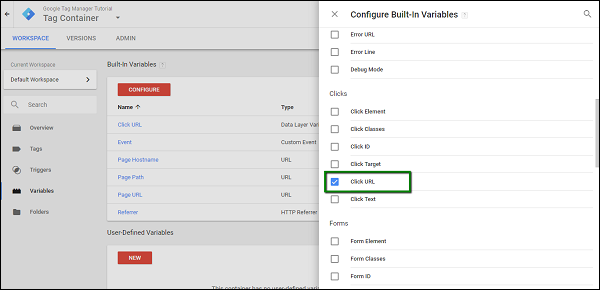
Click URL
Now that the variable is configured, we can configure the trigger.
The trigger will be enabled when a user clicks all the URLs, which are redirecting outside the blog. Creating this trigger is fairly simple.
Step 3 − Go to Triggers, click New. Provide a name to the trigger. Let us say, the name is – External Link Trigger.
Step 4 − Under Trigger configuration, click Choose a trigger type to begin setup…
Step 5 − From the available options, under Click, select Just Links. See the following screen for the steps so far.
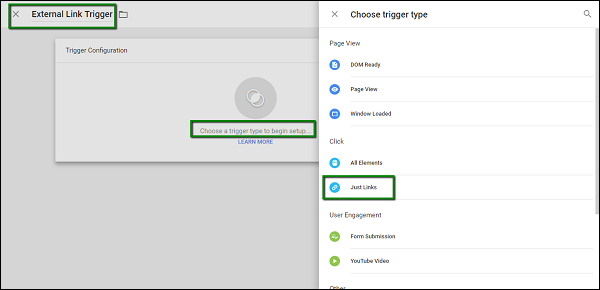
External Link Trigger
When Just Links is clicked, you are directed back to the first section, where you will need to provide the URL exception. Following are the steps to do it.
Step 6 − For the option, This trigger fires on, select Some Link Clicks.
Step 7 − Under the conditions, select Click URL, which should be previously selected. Select the value does not contain from the condition options.
Step 8 − In the text box for value, enter a value which is your blog URL. In our case, we will enter gtmtutorial2017.blogspot.in. Once finished, the screen will look similar to the following.
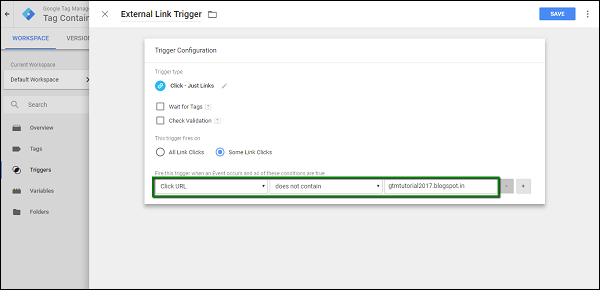
Select Click URL
Step 9 − Click the Save button in blue to save your new trigger.
Now it is time to configure our tag, which we will use to track the click event, which will redirect the user outside the blog.
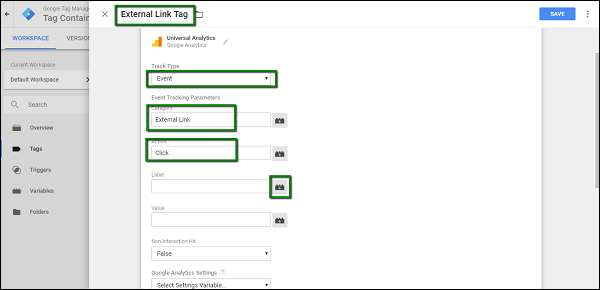
Step 10 − Open the Tags section, click the NEW button. Provide a name to your tag, let us call it – External Link Tag.
Step 11 − Under Tag Configuration, click Choose a tag type to begin setup… Select tag type as Universal Analytics and enter the following details on the screen.
  • Under Track Type, select Event
  • For Category – enter External Link
  • In Action – enter Click
  • For label, click the options icon
Tag Configuration
Step 12 − On the side panel displayed, select Click URL.
Step 13 − Once done, check the box Enable overriding settings in this tag. In the Tracking ID text box, enter your Google Analytics Tracking Code.
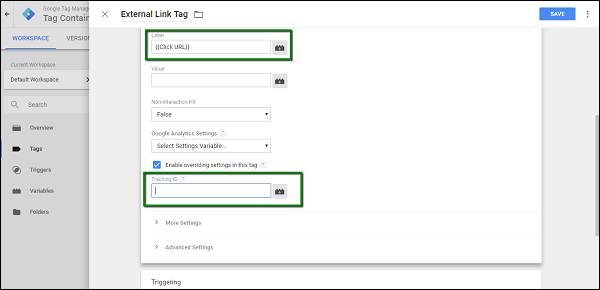
Tracking Code
Step 14 − Scroll down to configure Triggering. We are going to use our newly created trigger.
Step 15 − Click Choose a trigger to make this tag fire…It will display the available triggers. Select External Link Trigger, which we have created earlier.
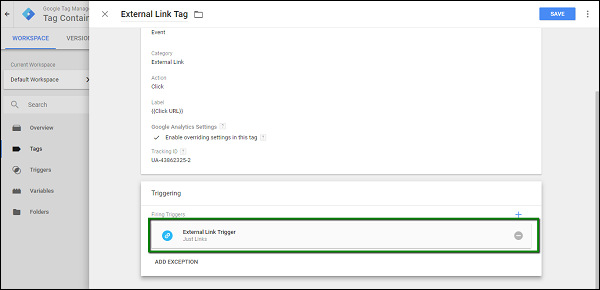
Tag Fire
This concludes the configuration of the tag. Click the Save button.
Step 16 − Now, to debug the tag, click the Preview button in grey. It will start the Google Tag Manager in the debug mode.
Step 17 − Go back to your blog and refresh the blog for Google Tag Manager Debugger to start. Considering the example above, there are two links being shown in the page. Also, there is the External Link Tag, which is shown under Tags Not Fired On This Page.
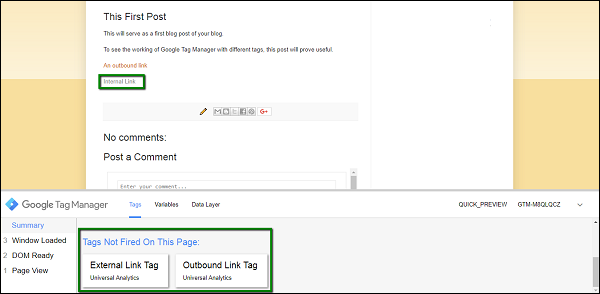
GMT Debugger
Now it is time to test the configuration of the tag. We will use Ctrl + Click in both the scenarios to check whether the tag is fired. Ctrl + Click will have the link opened in the new tab, without refreshing the current page. We need to have the page intact, as we won’t be able to see the tags fired, if the page refreshes.
Step 18 − First, use Ctrl + Click on the Internal Link as highlighted in the above figure. Ideally, the tag should not get fired, as the link is directing the user on the same blog itself.
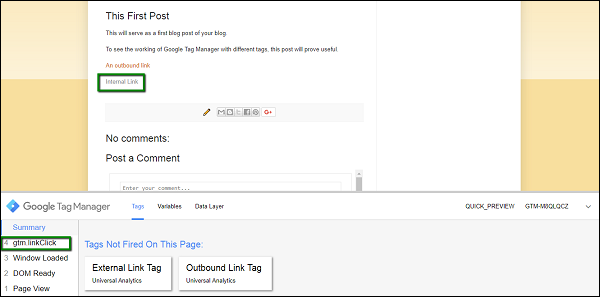
GTM Link Click
As shown in the above figure, under Summary section in the debugger, you will see another event – gtm.linkClick. This means that GTM has recorded the click event.
But, you won’t see any change in the Tags Fired On This Page section. This is because we have configured the tab for outbound links.
Step 19 − Now Ctrl + Click An outbound link (this was created in the previous section).
Observe the summary section, it will again get updated for another event – gtm.linkClick.
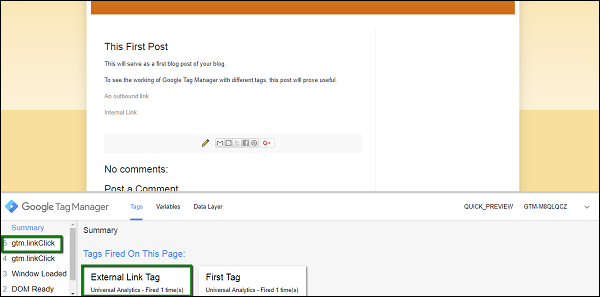
gtm.linkClick
As shown in the above figure, for the next event recorded, there will be a tag fired – External Link Tag. You will be able to see it under Tags Fired On This Page.
In this way, you can employ event tracking with Google Tag Manager and configure tags for critical data that you need from your website/blog.

Form Tracking

More often than not, on any website/blog you will see a form, which will capture certain details from the user. As a product marketer, it becomes tedious to know whether the Form is getting used by the visitors.
It can be a good approach to know how many times a user has filled in information on this form and how many times they came across an error. With Google Tag Manager, you can easily track the form submissions. This section will take you through the process.
For this example, we will have a Contact Us form created on our blog.
Step 1 − For blogger, to have a contact form created, use the Layout option → Add a Gadget. Once you click Add a Gadget, you will see the following screen, where you will find Blog Search gadget. Click the blue plus (+) icon to insert it in the blog.
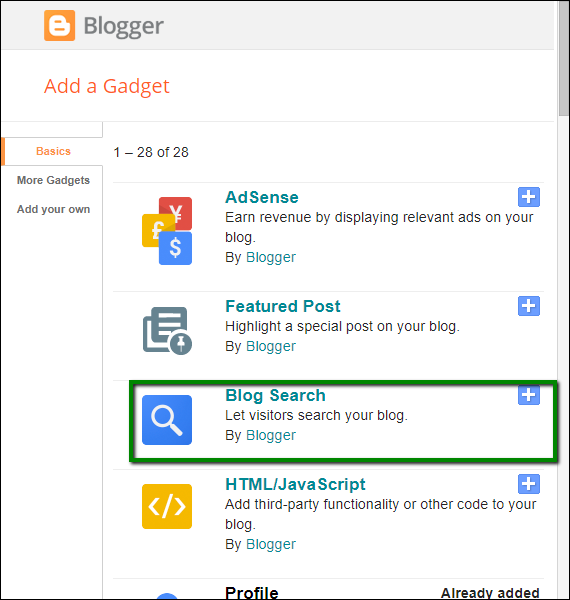
Blog Search
Once done, it will show up on your blog as shown in the following screenshot.
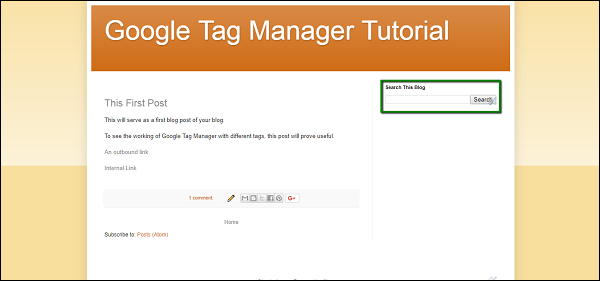
Blog
Now, let us configure the related triggers and the tag.
To start with the trigger, we will follow the same steps. We will first add enable a built-in variable called Form ID, then we will create a trigger which will utilize this newly created variable.
Once done, we will use this new trigger to configure a tag for tracking the interactions with the form.
To enable the built-in variable Form ID, following are the steps.
Step 2 − Under Variables section, click the button in red, CONFIGURE. From the Forms category, check the box Form ID. This will show Form ID in the available variables immediately. See the following screen for reference.
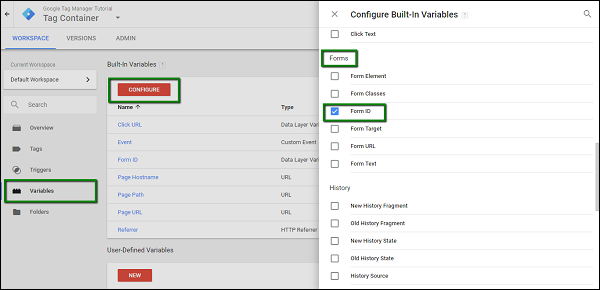
Variable Configure
Now that the variable is configured, we can configure the trigger.
The trigger will be enabled when the user submits any data in the Contact Us form.
Step 3 − To do so, go to Triggers, click New. Provide a name to the trigger. Let us name it as – Form Submission Trigger.
Step 4 − Under Trigger configuration, click Choose a trigger type to begin setup…
Step 5 − From the available options, under User Engagement, select Form Submission. See the following screen for the steps so far.
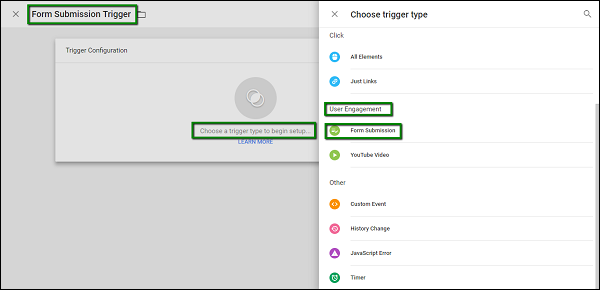
Form Submission
When Form Submission is clicked, you are directed back to the first section, where you will need to provide the Form ID.
Step 6 − For the option, This trigger fires on, select All Forms.
Once you are done with the above step, it will enable tracking for all the forms submitted on the blog page. You can also use a specific Form ID, which can be configured when you created your blog.
For configuring a specific Form ID, you may take the support of your website/blog developer to get more details. After completion of these steps, see the following screen for complete reference.
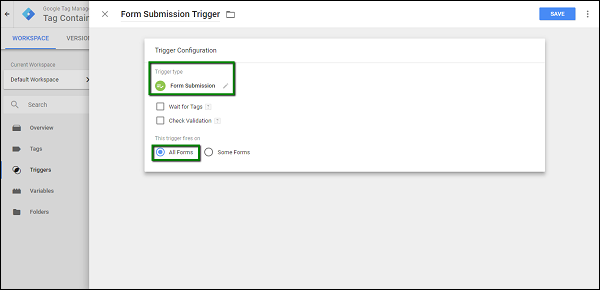
Form Submission Trigger
Step 7 − Click the Save button in blue to save your new trigger.
Now it is time to configure our tag, which we will use to track the click event that will redirect the user outside the blog.
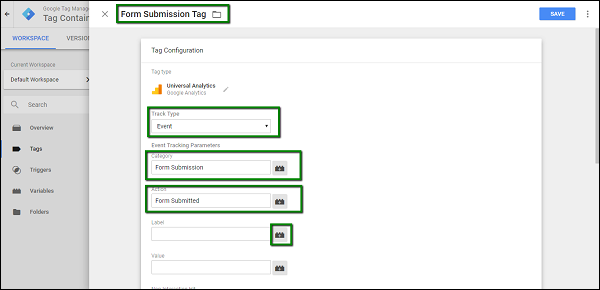
Step 8 − Open the Tags section, click the NEW button. Provide a name to your tag, let us call it – Form Submission Tag.
Step 9 − Under Tag Configuration, click Choose a tag type to begin setup… Select tag type as Universal Analytics and fill the following details −
  • Under Track Type, select Event
  • For Category – enter Form Submission
  • In Action – enter Form Submitted
  • For label, click the options icon
Universal Analytics
Step 10 − On the side panel displayed, select Form ID.
Step 11 − Once done, check select Enable overriding settings in this tag. In Tracking ID text box, enter your Google Analytics Tracking Code.
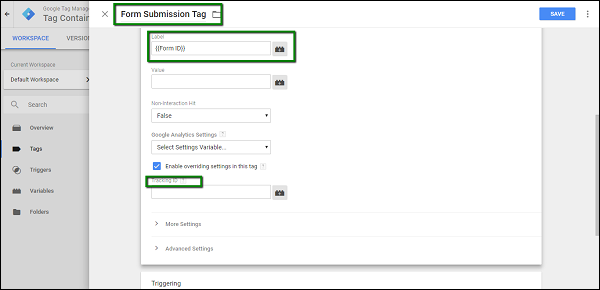
Enable Overriding
Scroll down to configure Triggering. We are going to use our newly created trigger.
Step 12 − Click Choose a trigger to make this tag fire…It will display the available triggers. Select Form Submission Trigger, which we have created earlier.
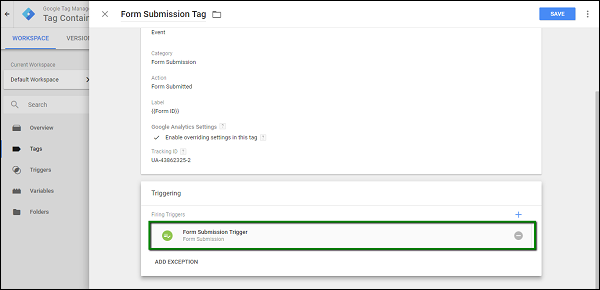
Choose Trigger
This concludes the configuration of the tag. Click the Save button.
Step 13 − Now, to debug the tag, click the Preview button in grey. It will start the Google Tag Manager in the debug mode.
Step 14 − Go back to your blog and refresh the blog for Google Tag Manager Debugger to start. There will be the Form Submission Tag, which is shown under Tags Not Fired On This Page.
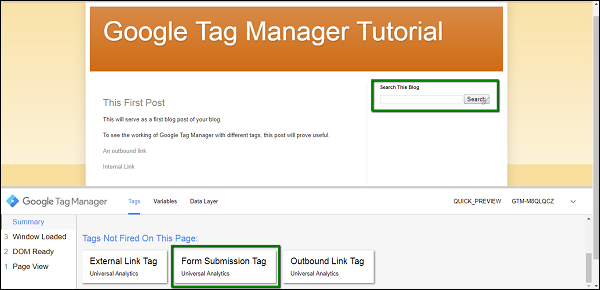
Search Blog
Step 15 − Now interact with the Search This Blog form by entering some values in it. Let us type in First, as our first blog post contains the word First.
Step 16 − Click Search. The new event will be seen under Summary, and the Form Submission Tag will show up under Tags Fired On This Page.
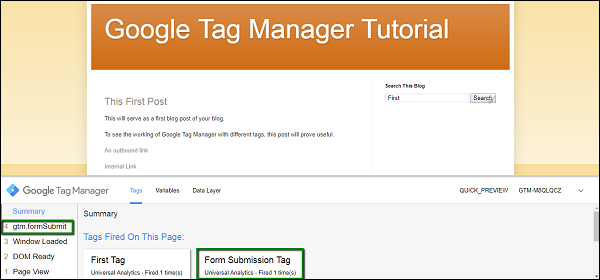
Summary
In this way, we can have Form Submission Tags created using Google Tag Manager.